

How to do the AI zombie trend
Make mine with photosThere are four ways to do the AI zombie trend: prompt it in an AI video tool like Dreamina, Kling or Veo, stitch two generated clips together in CapCut, use an app that writes a story around two photos, or put yourself into a finished clip. Which one fits depends on how much time you have, and whether you want to direct the scenes yourself or get a finished clip.
- One photo per person, no prompt
- Works in your browser, no app
- A finished 10-second clip, no editing
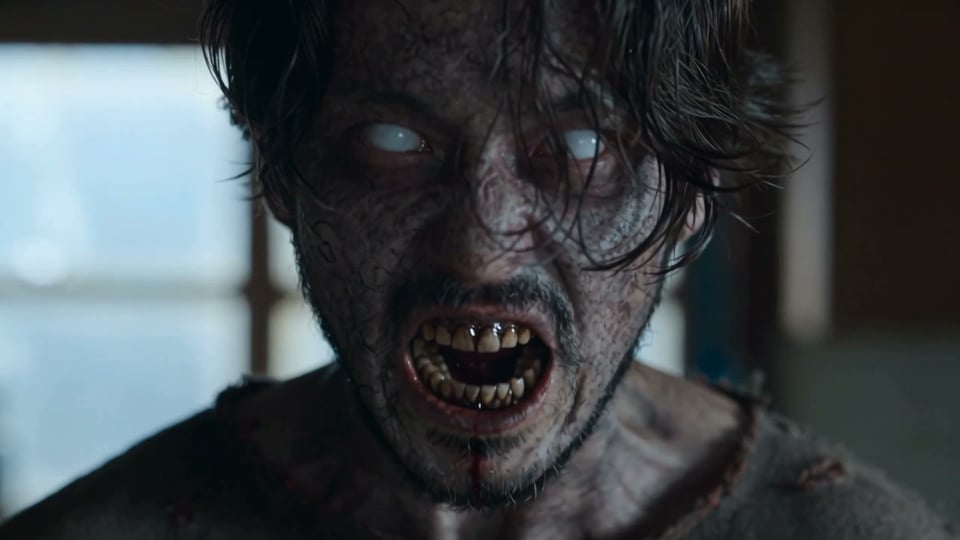
4 ways to do the AI zombie trend
Each way asks for something different, and gives you a different clip. Apps are named only as examples.
| Prompt a video toole.g. Dreamina, Kling, Veo | Two clips + CapCutGenerate twice, cut together | Two-photo story appA new story around your photos | One finished clip (this site)You in a ready-made clipUse my photos | |
|---|---|---|---|---|
| You supply | Photos or reference images, plus a prompt you write | Two generated clips, plus an edit | Two photos | One photo per person, for one role or both |
| The scenes | Whatever your prompt describes; they change with every try | Whatever you generated, joined at the cut you choose | A new story written around your photos | The same finished scenes: the dark room, the hug by the window, the sunset field |
| Clip length & format | Veo 4–8 s per generation, extendable; Kling 3.0 up to 15 s | As long as you cut it | Depends on the app; often 12–15 s, vertical 9:16 | 10 seconds, 16:9, 720p |
| Effort | Write and rewrite the prompt, try a few times | Two generations and an edit | Upload and wait | Add photos, generate |
| Price | See the app's plans | See the app's plans | See the app's plans | Packs from $9.90 (1 video), one-time |
Want the finished clip with you in it?
No prompt, no second clip, no editing.
Which way fits you?
Prompt a video tool: you want your own version
Dreamina (CapCut's AI video tool), Kling and Google Veo turn a prompt and your photos into a new scene, so you choose the setting, the outfits and the ending. Dreamina has a zombie love story page with example prompts to start from, and Veo 3.1 takes up to three reference images. Expect a few tries before the faces, the roles and the cut land where you want them.
Two clips + CapCut: you want a longer story
Generate the standoff and the memory as separate clips, then join them in CapCut. It is more work, but you decide the length and exactly where the cut lands. CapCut is where you edit the clips, not where you make them.
Two-photo story app: you want it easy and vertical
Upload two photos and the app writes a fresh zombie story around them, usually in 9:16 for TikTok and Reels. Sound and length depend on the app.
One finished clip here: you want a cinematic take with no editing
The 10-second clip is already made: the roar in the dark room, the gun coming down, the hug by the window and the sunlit field. Add a photo for one role or both, and only the people change.
How to write an AI zombie love story prompt
This is how public guides for the trend, such as Dreamina's zombie love story page, lay the prompt out: two labelled people and four beats. Treat it as a starting point; we have not tested these prompts ourselves.
- 1
Label who is who
Label each photo with its role, for example Image 1 / Image 2 (Dreamina and other Seedance-based tools use @ references, such as @Image1). Image 1 is the survivor with the gun, Image 2 is the one who turned. Use the same labels every time a person appears.
- 2
Beat 1, about 0–3 s: the standoff
Image 2 stumbles forward with clouded eyes and grey skin; Image 1 aims a pistol, crying, hands shaking. Short phrases set the mood: "dim abandoned room, cold light".
- 3
Beat 2, about 3–6 s: the gun comes down
Image 1 can't pull the trigger, lowers the gun and opens their arms.
- 4
Beat 3, about 6–8 s: the hug
The two of them hold each other. It is the emotional peak, so give it its own beat.
- 5
Beat 4, the last seconds: the hard cut
Say the cut outright, for example "hard match cut to" the same two people, human again, laughing in a sunlit field. Warm golden light against the cold room is what makes the ending land.
- 6
Want it without a gun?
Have Image 1 freeze and reach out a hand instead, then hug. The story still works.
- 7
Say what to leave out
End with exclusions: no gore, no on-screen text or captions, no logos, and no likeness of real public figures. Only use photos of yourself or adults who agreed.
Why you might need two clips
Most AI video tools make short clips per generation. Google Veo 3.1 makes clips of 4, 6 or 8 seconds, which you can extend; Kling 3.0 goes up to 15 seconds. Fitting a standoff, a lowered gun, a hug and a sunlit memory into one generation is a lot to ask, so people often generate the cold half and the warm memory as two separate clips.
Then they join them in CapCut and put the cut exactly where the memory should hit. It also helps when one half comes out well and the other doesn't: you only redo the half that missed.
Common problems and what guides suggest
These are fixes that prompt guides recommend, not results of our own tests.
Faces or outfits get mixed up between the two people
Repeat the role labels in every beat and describe each person's outfit in the same words every time they appear.
Roles mix, or extra people appear
Add "keep identity, no extra people" and say who does what in each beat, so the gun doesn't end up with the wrong person.
The cut lands in the wrong place
Name the cut point, for example "at 8 seconds, hard match cut to…". If it still drifts, make the memory its own clip and cut it in CapCut.
Still not right after that
Change one thing at a time and regenerate. A small change is easier to judge than a full rewrite.
How to do the AI zombie trend on this site in 3 steps
- 1
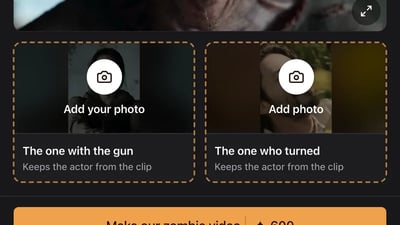
Decide who turns
Pick who holds the gun and who becomes the zombie. Put each photo in that role's slot.
- 2
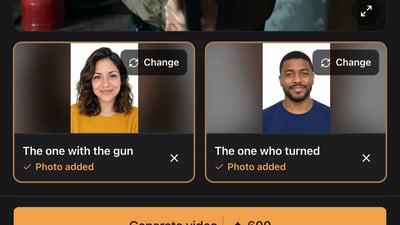
Add a clear photo for each role you fill
One person per photo, facing the camera, whole face visible. A role without a photo keeps the actor from the clip.
- 3
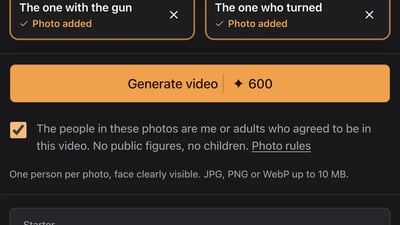
Generate, then pick it up in My videos
Close the tab if you like. The video shows up in My videos when it's ready and stays there for 30 days to download or share.
Do the AI zombie trend with your photos
Add a photo for the one with the gun, the one who turned, or both. No prompt and no editing: the scenes stay as filmed.
Who plays who
Add at least 1 photo
One person per photo, face clearly visible. JPG, PNG or WebP up to 10 MB.
- No app
- No watermark
- Credits back if a video fails
Before you post
- 1
Pick the shape for where you post
Our clip is 16:9 widescreen: it fills the screen on YouTube and X, and sits in the middle with bars on TikTok and Reels. Most two-photo apps make 9:16 vertical by default, and in Veo you choose 16:9 or 9:16 before you generate.
- 2
Switch on the AI label
TikTok and Instagram both have an AI-generated label. Turn it on when you post.
- 3
Only use people who said yes
Yourself, or adults who agreed to be in it. No public figures, and no one under 18.
Doing the AI zombie trend: questions
Some prompt tools, Dreamina among them, have a free tier, so check each app's plans. On this site it isn't free: each video uses 600 credits from a one-time pack, starting at $9.90 for one video. The small sign-up bonus doesn't cover a video, and failed videos give their credits back.
This site's clip is 16:9 only. For 9:16, Veo lets you choose vertical before you generate, and most two-photo apps are vertical by default. A 16:9 clip still posts to TikTok and Reels, with bars above and below.
Not on this site: both roles are people, and each photo needs one person's face. With a prompt tool you describe the characters yourself, so you can write a pet version.
It depends on what you have. Time and an idea of your own: a prompt tool like Dreamina, Kling or Veo. Just upload and wait: a two-photo app. A finished cinematic clip with no prompt: add your photos here.
Only if you generate the two halves separately and want to cut them together. A single generation, a two-photo app or this site gives you a finished file with no editing.